3DLoadCalculator Features — Complete Load Planning Toolkit
Explore all features of 3DLoadCalculator: AI auto-optimization, 3D visualization, palletization, center of gravity analysis, loading rules, PDF export, team collaboration, and more.
AI-Powered Load Optimization
3DLoadCalculator uses an advanced 3D bin-packing algorithm to calculate the most efficient arrangement of your cargo inside containers and trucks. Click "Auto Plan" once — the engine evaluates thousands of placement combinations in seconds and returns the solution with the highest space utilization.
Unlike tools that require you to manually select one container at a time, the algorithm distributes your full cargo list across as many transport units as your project requires in a single pass. Every constraint you've set on individual items — orientation locks, stacking limits, floor-only flags — is respected automatically.
- Calculates across multiple containers in one click
- Respects item-level and project-level constraints simultaneously
- Returns results in under 30 seconds for typical shipment sizes
- No manual trial-and-error required
Multi-Container & Multi-Truck Planning
Add as many containers, trucks, or trailers as your shipment requires. The optimizer treats them as a single unit — distributing cargo across all of them to fill each as efficiently as possible. No more running one container calculation, writing down what didn't fit, and starting again.
After auto-planning, you retain full manual control: drag an item from one container's unloaded list into any other container. Items you manually move are reflected instantly in volume and weight utilization stats for both containers.
- Plan 1 to unlimited containers in a single project
- Drag and drop cargo between containers after auto-plan
- Real-time per-container volume %, weight %, and item count
- Unloaded items panel shows everything that still needs placement
Built-In Palletization
Mark any cargo item as "Palletizable" and 3DLoadCalculator will pack those items onto your configured pallet types before loading them into containers — automatically. The full sequence is: items → pallets → containers, all in one Auto Plan run.
You configure your pallet types in the Equipment Library (standard Euro pallet, custom, or any dimensions you specify). The planner respects pallet dimensions and payload limits when packing items. Generated pallets appear as first-class items in the 3D view, and you can click any pallet to inspect its contents in 3D.
- No separate "pallet building" step — it's part of Auto Plan
- View generated pallets individually in the 3D viewer
- Multiple pallet types per project
- Items not marked palletizable are floor-loaded directly
Interactive 3D Load Viewer
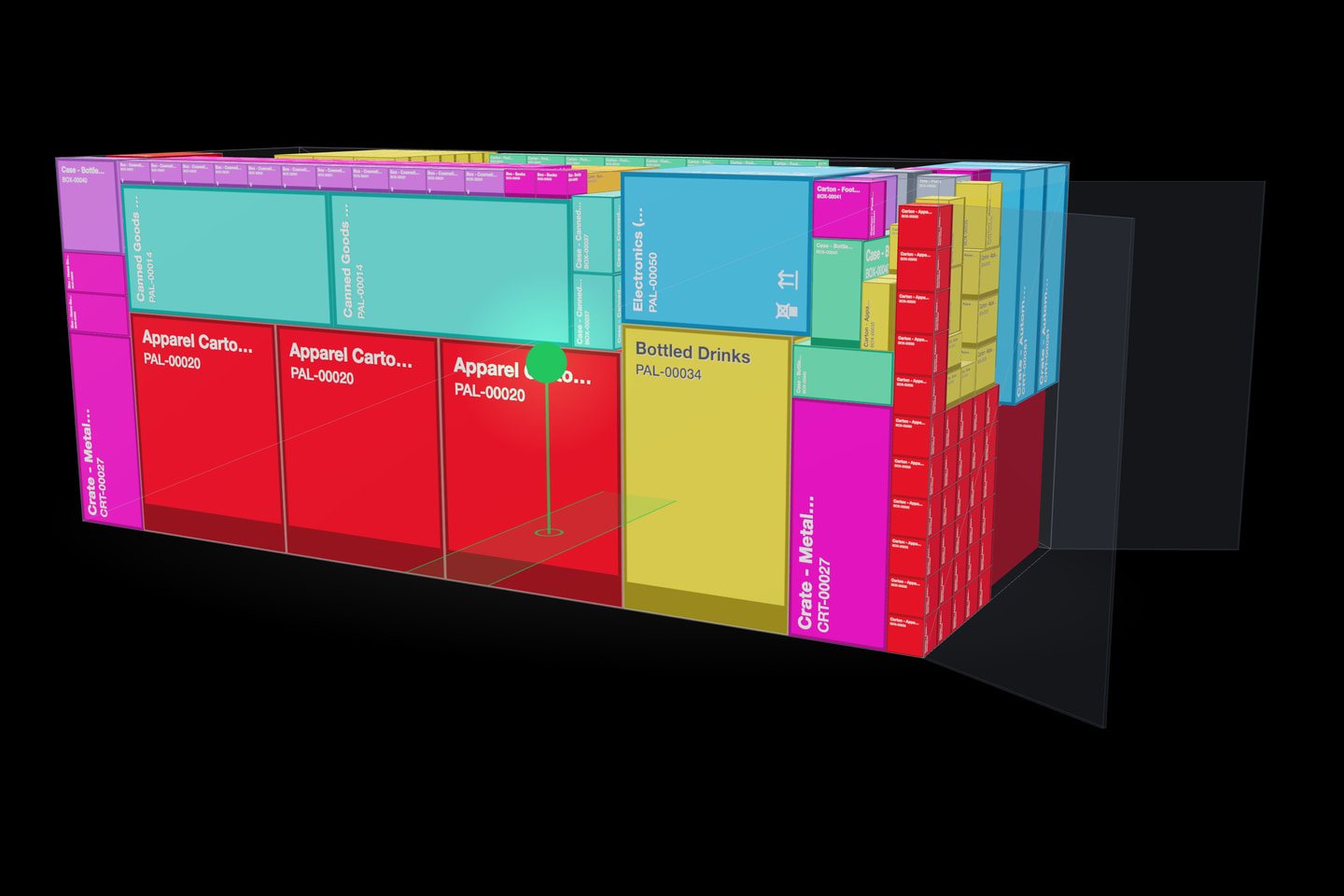
Every load plan renders in a fully interactive 3D scene. Rotate the view by clicking and dragging, zoom in to inspect individual items, or pan to examine corners and gaps. The visualization runs in your browser — no plugins, no downloads.
Use the step controls to walk through the loading sequence one item at a time (Step 1 of N → Step N of N), or jump straight to the final configuration. The step-by-step mode is designed for warehouse teams who need to know exactly which item to place next and where.
Controls & overlays:
- • Manifest panel: full item list, filterable by container
- • Stats panel: volume %, weight %, items stacked
- • Center of Gravity marker: toggleable visual indicator
- • Container switcher: jump between containers without leaving the viewer
Center of Gravity Analysis
Every container displays its center of gravity position along three axes (Length/Width/Height) and assigns a safety rating: Optimal, Acceptable, Warning, or Critical. Ratings are updated live as items are added, moved, or recalculated.
A shifted center of gravity causes instability during transport — tipping during cornering, uneven axle loading, and potential cargo damage. Catching it before the truck leaves the warehouse prevents incidents and liability.
Safety levels:
- Optimal: Weight is well balanced across all axes
- Acceptable: Minor offset within safe transport range
- Warning: Meaningful offset — review placement of heavy items
- Critical: Imbalance detected — plan must be corrected before transport
Advanced Loading Rules & Cargo Constraints
Control exactly how items are placed with item-level constraints and project-level rules.
Item-Level Constraints
These are set on individual cargo items and enforced by every calculation:
- • Not Stackable: No items can be placed on top
- • Not Turnable: Item must keep its original orientation
- • Not Tiltable: Item cannot be tilted
- • Floor Only: Item must rest on the container floor
- • Palletize: Item will be packed onto a pallet
- • Max Stack Weight: Maximum weight allowed on top
- • Max Layers: Maximum number of layers that can stack
General Rules
- • Load groups separately (prevent mixing cargo from different groups)
- • Load items in listed order
- • Allow partial stacking (items can be supported by less than their full base)
- • Hexagonal cylinder packing (optimized hex-pattern for cylindrical cargo)
Organization Cargo Library
Build a permanent library of cargo items for your organization. Every item you save — with its dimensions, weight, constraints, color code, and SKU — is available instantly across all projects. No re-entering the same box dimensions for every shipment.
Import your product catalog from Excel or CSV. The importer validates each row, flags errors, and shows a preview. You can also save any item from a project directly to the library with one click.
What you can store per item:
- • Name, SKU, description
- • Dimensions (L × W × H) and weight
- • Geometry: Box or Cylinder
- • All item-level constraints
- • Display color
- • Group / category
Container & Equipment Library
Save the containers, trucks, trailers, and pallets your organization uses as reusable templates.
Define custom dimensions for any equipment type — useful for specialty vehicles, open-top containers, or non-standard pallet sizes. Set door width and height so the planner warns you when your tallest item exceeds the door opening.
Built-in library includes:
- • ISO 20ft Dry, 40ft Dry, 40ft High-Cube, 45ft High-Cube
- • Standard EU and US truck trailers
- • Euro pallets, standard pallets, and custom pallet sizes
Excel & CSV Packing List Import
Skip manual data entry for large shipments. Drop your existing Excel packing list or CSV file into 3DLoadCalculator and it parses dimensions, weights, quantities, and SKUs automatically. A preview table shows every parsed row with a valid/invalid status before you commit.
Invalid rows (missing dimensions, unrecognizable units) are flagged with specific error messages — not silently skipped. Download the template file to see the exact column format if you're starting from scratch.
PDF Loading Manifest
Export a professional loading manifest PDF for each container in your project. The document is structured for both office reference and warehouse execution.
Document includes:
- • Header: Document ID, container specifications (dimensions, door opening, payload)
- • Utilization summary: Volume %, weight %, total items, item types
- • Diagrams: Top view, side view, rear view with center of gravity position
- • Item table: All items with dimensions, unit weight, quantity, total weight, and constraints
- • Footer: Page X of Y, generated-by line
The Document ID printed on the manifest matches the one displayed in the app — use it to verify the warehouse team is executing the correct plan version.
Project-Based Workflow
Each shipment lives in its own project, keeping cargo lists, equipment configurations, loading rules, and plans organized. Set a status (Draft → Planned → Completed) to track progress across your team's queue.
Duplicate a project to use it as a template for recurring shipments on the same lane. Per-project unit overrides let you use metric for one project and imperial for another — without changing your account defaults.
Team Collaboration & Roles
Invite your planning team to a shared organization workspace. All projects, cargo library items, equipment templates, and loading rules are shared across the organization automatically — no file sharing or copy-paste needed.
Role permissions:
- • Owner: Full access, billing management, transfer ownership
- • Admin: Invite members
- • Member: Create and edit projects, use libraries
Ready to see it in action?
Start your free trial and create your first load plan in under 10 minutes.